Introduction
Recently finished a quick project where I built a complete virtual desktop infrastructure for end users using VMware Horizon. It was pretty fun to see how companies set up remote work environments. I ran everything on VMware Workstation since its easier and my HP rack airplane jet server is too packed and too loud for even more heavy load.
The whole thing ran on four VMs working together.
Important
Big shoutout to evaluation licences and free trials. Dont forget to install VMware tools.
Infrastructure
DC01: The Domain Controller
First up was DC01 running Windows Server 2022. This became my central hub for everything. I installed Active Directory Domain Services and promoted it to a domain controller. Created a new forest called “vdi.local” - nothing fancy, just needed a working domain. Added a few test users like Administrator and testuser1. Then I configured DNS on the same server. This handles all the name resolution so “conn01.vdi.local” points to the right IP address. Next was DHCP to automatically hand out IP addresses. Set up a scope from 192.168.10.50 to 192.168.10.200, configured it to point to DC01 as the DNS server, and set the gateway. This way all VMs get network settings automatically. Finally, I set up File Server role and created a shared folder for user data.
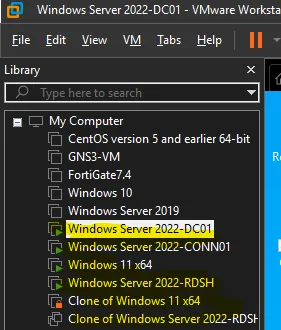
CONN01: The Connection Server
This is where Horizon lives. Installed Windows Server 2022, joined it to the vdi.local domain, then ran the Omnissa Horizon Connection Server installer. Once installed, I could access the Horizon Administrator Console at https://conn01.vdi.local/admin. This web interface is where you manage everything like desktop pools, published apps, user permissions…
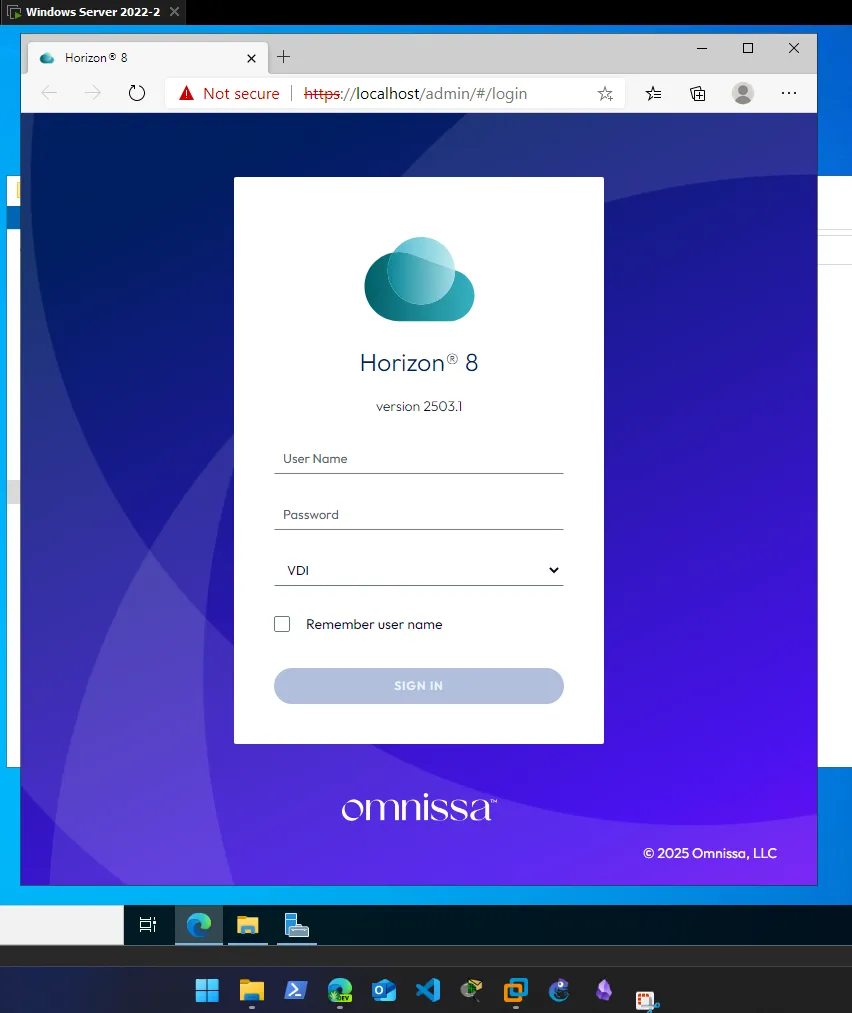
WIN11-MASTER: Desktop Template
Installed Windows 11 Enterprise on a fresh VM. Went through the basic setup, then immediately joined it to the vdi.local domain. Ran Windows Update to get everything current. Installed VMware Tools (this is mandatory for proper integration). Then ran the VMware OS Optimization Tool, which disables a bunch of unnecessary services and features that waste resources in a VDI environment. After installation and restart, I verified the Horizon Agent service was running in services.msc. Took a snapshot of this VM so I could roll back if needed.
RDSH-MASTER: Application Server
Installed Windows Server 2022 and joined it to the domain. This one needed the Remote Desktop Services role installed. Selected Remote Desktop Session Host as the role. The apps I wanted to publish (Notepad, Calculator, WordPad) were already built into Windows, so no additional installation needed. Installed Horizon Agent here too, but with differen. Again, pointed it to conn01.vdi.local during installation. Took a snapshot when done.
Configuring Horizon
Desktop pool
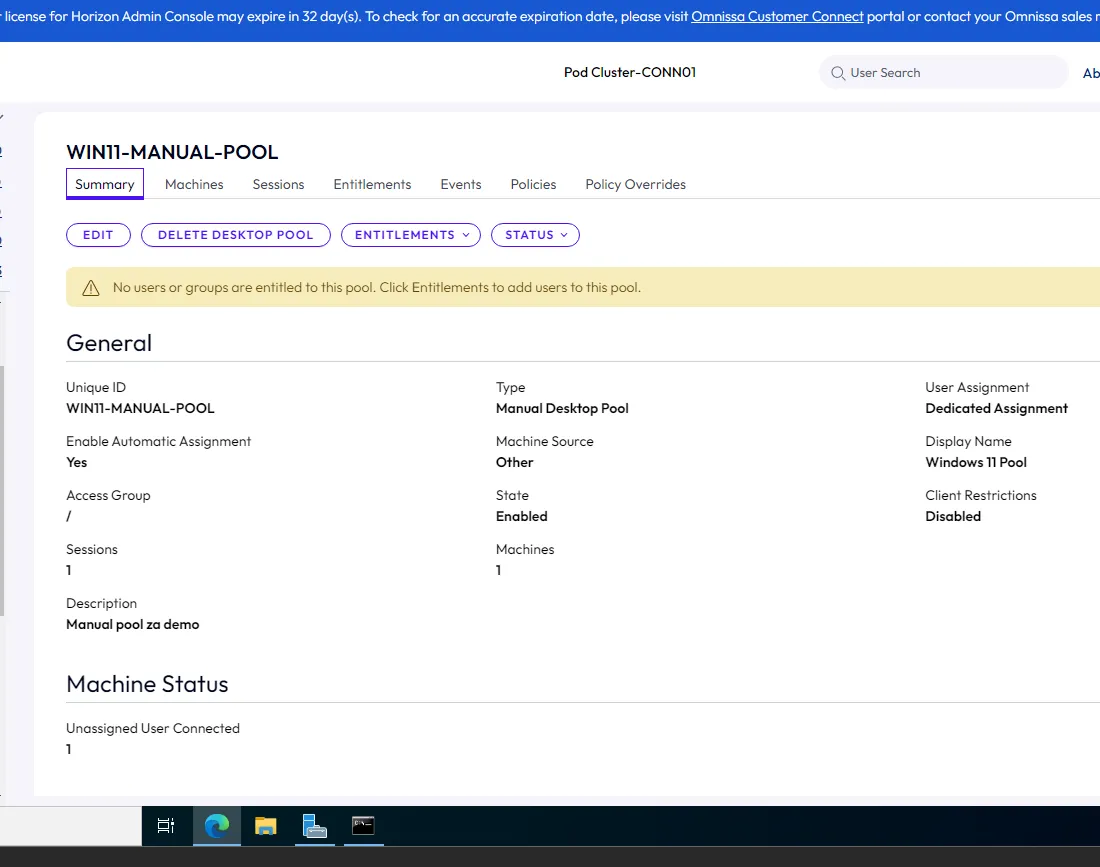
Logged into Horizon Administrator Console and went to Inventory → Desktops → Add. Selected “Manual Desktop Pool” since I was using pre-built VMs instead of automated clones. Named it “Win11 Manual Pool” and chose VMware Blast as the display protocol. After creating the pool, went to the Machines tab and clicked Add. The console showed WIN11-MASTER.vdi.local as available. Clicked it and added it to the pool. Then went to Entitlements tab and added my test users. This controls who can actually access these desktops.
RDS Farm
Created a “Manual RDS Farm” and added RDSH-MASTER.vdi.local to it. Published Notepad and Calculator this way to keep it simple for testing purposes. Then added entitlements so users could access these apps.
Testing & Final product
Installed Horizon Client on DC01 (since my host machine couldn’t reach the NAT network). Launched it and added a new server: conn01.vdi.local. Logged in as vdi\testuser1 with the password I’d set. The client looks like this:
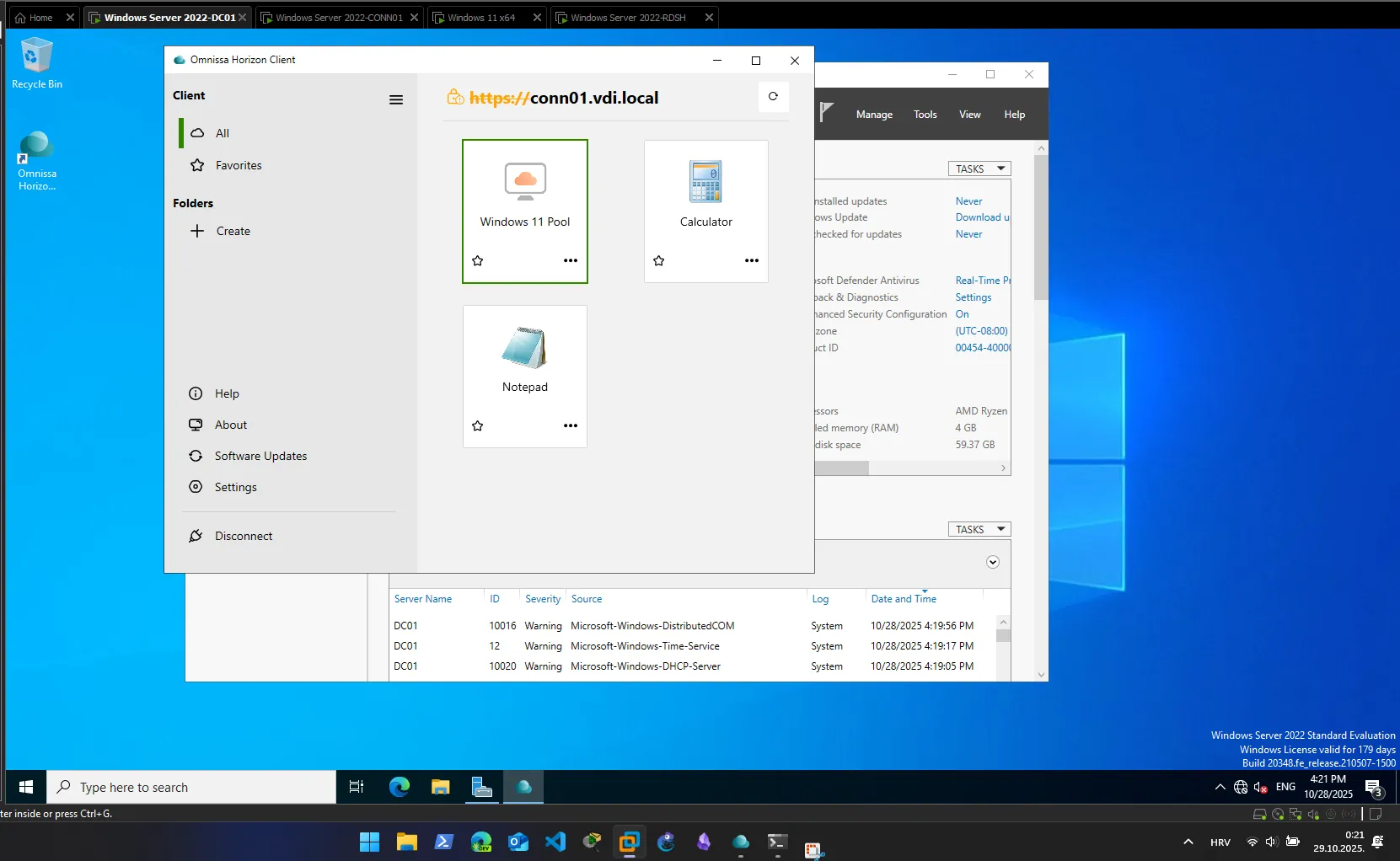
WINDOWS IN WINDOWS IN WINDOWS.
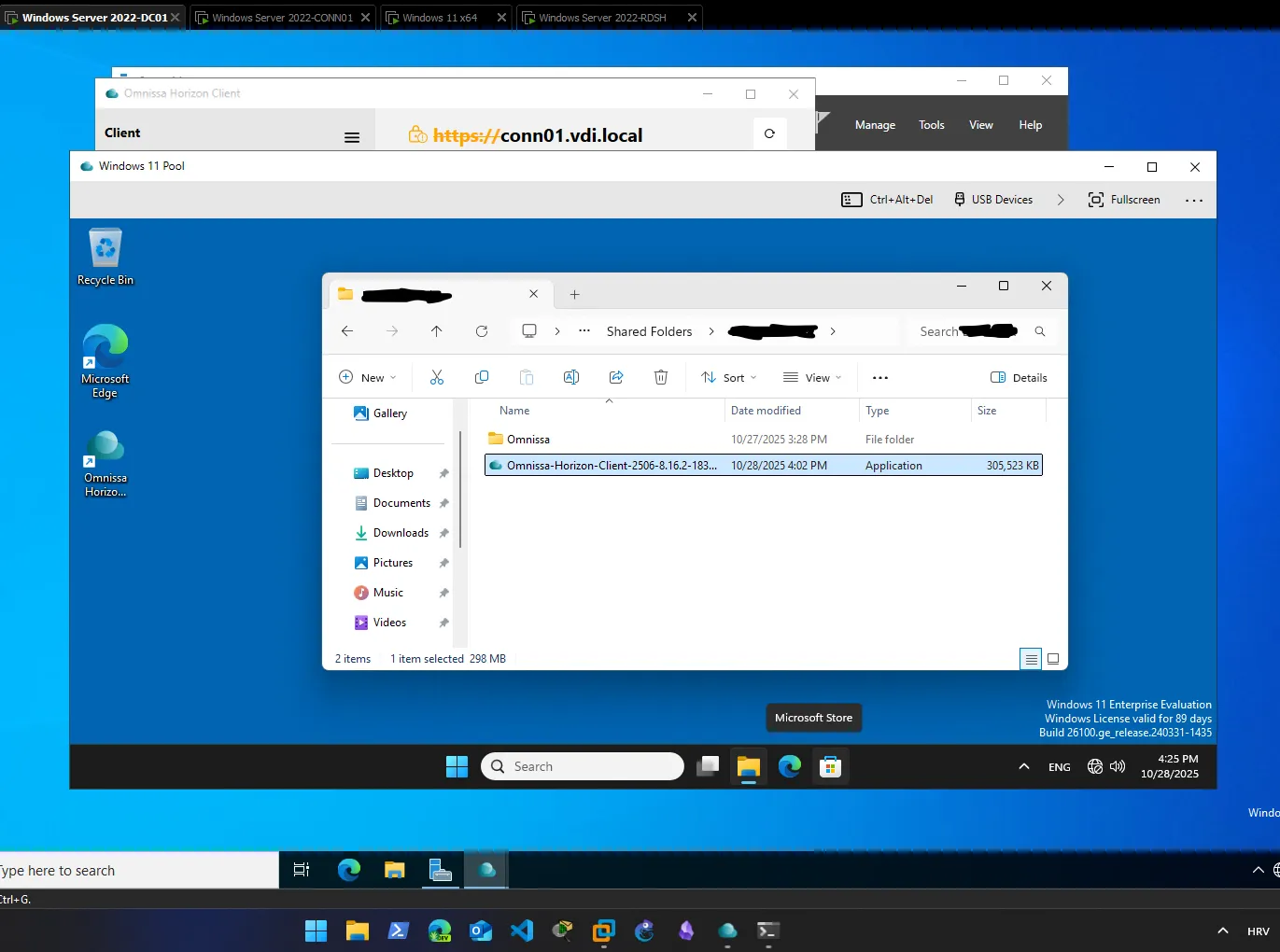
Clicked on the desktop pool and got a full Windows 11 session in the Horizon Client window. Could use it like any normal desktop. Closed that and clicked on Calculator. Just the Calculator app launched in its own window, running on RDSH-MASTER but displaying on my screen. Users get just the app they need without a full desktop session. Network drives automatically mapped because of the logon script I’d configured in Group Policy.
For my lab I used the master images directly, but in production you’d use cloning technology to spin up hundreds of desktops from those masters.